
How to Set Up Your Instabridge eSIM on iPhone
This article assumes that you have already installed an Instabridge eSIM.
If you have not installed one yet, please see this article for instructions.
1. Go to Settings
Open your iPhone’s Settings app.

2. Go to Cellular / Mobile Data
Tap Cellular (or Mobile Data, depending on your iOS version).

3. Select Your Instabridge eSIM
Under SIMs, tap your Instabridge eSIM.
In this example, the eSIM is labeled “Travel”, but it may be different on your phone.

4. Configure the eSIM
- Make sure Turn On This Line is enabled.
- Set Voice & Data to 5G Auto.
(Optional) Rename your Instabridge eSIM by tapping Cellular Plan Label.

- Return to the main Cellular screen.
5. Set the Instabridge eSIM for Data
From the Cellular screen, tap Cellular Data.

Select the Instabridge eSIM (for example, “Travel”).

- Go back to the Cellular screen.
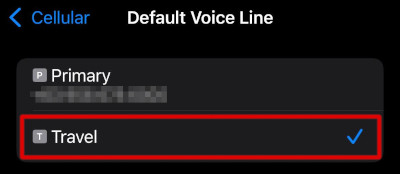
6. Set the Instabridge eSIM as Your Default Voice Line
From the Cellular screen, tap Default Voice Line.

Select your Instabridge eSIM from the list.
That’s it! Your Instabridge eSIM is now ready for calls, SMS, and data.
Updated on: 08/10/2025